How to Set Up IPTV on Smart TVs: Samsung Tizen & LG webOS Configuration Guide
Flexe IPTV Technical Team
Streaming Infrastructure & Client Support
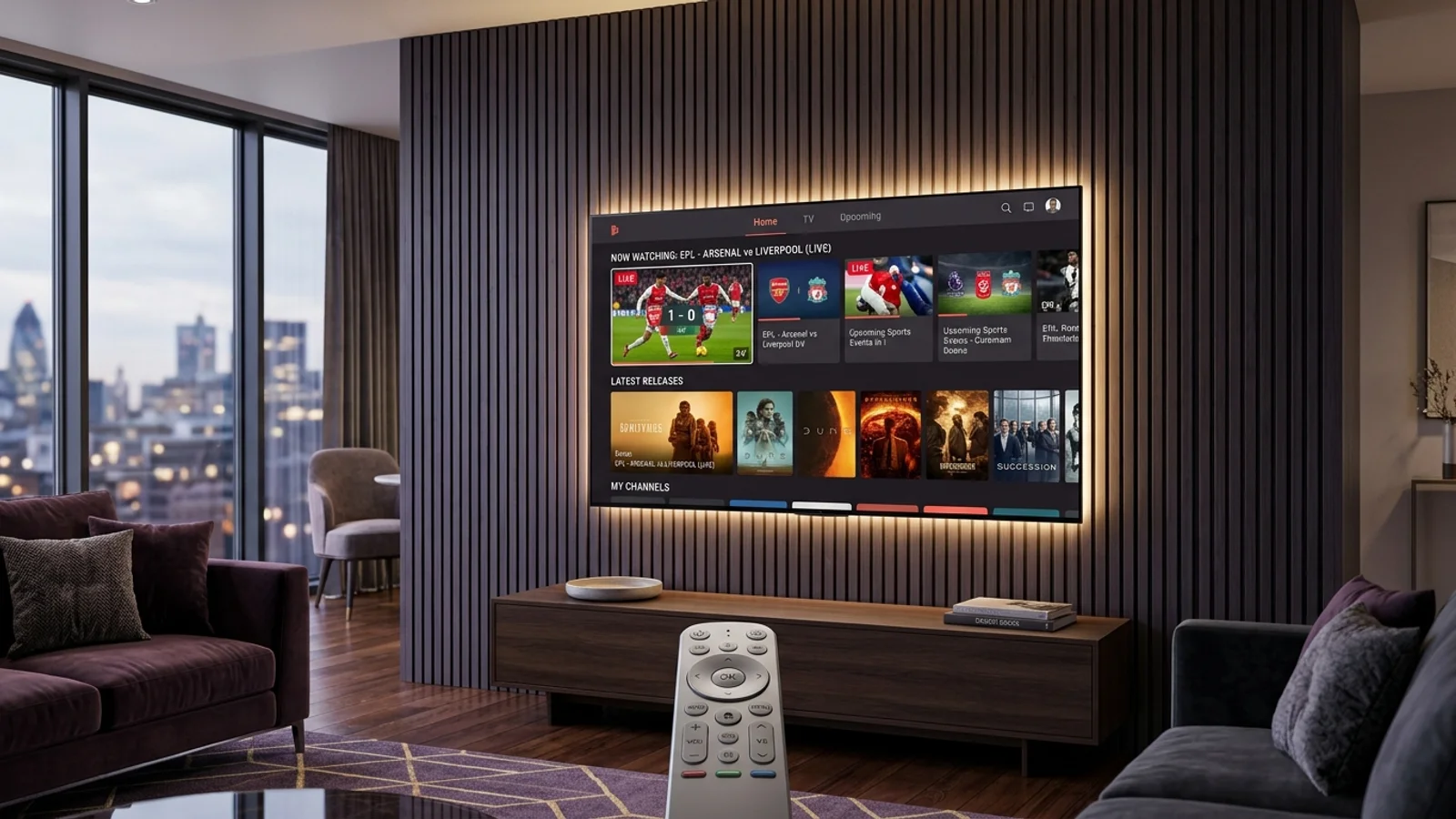
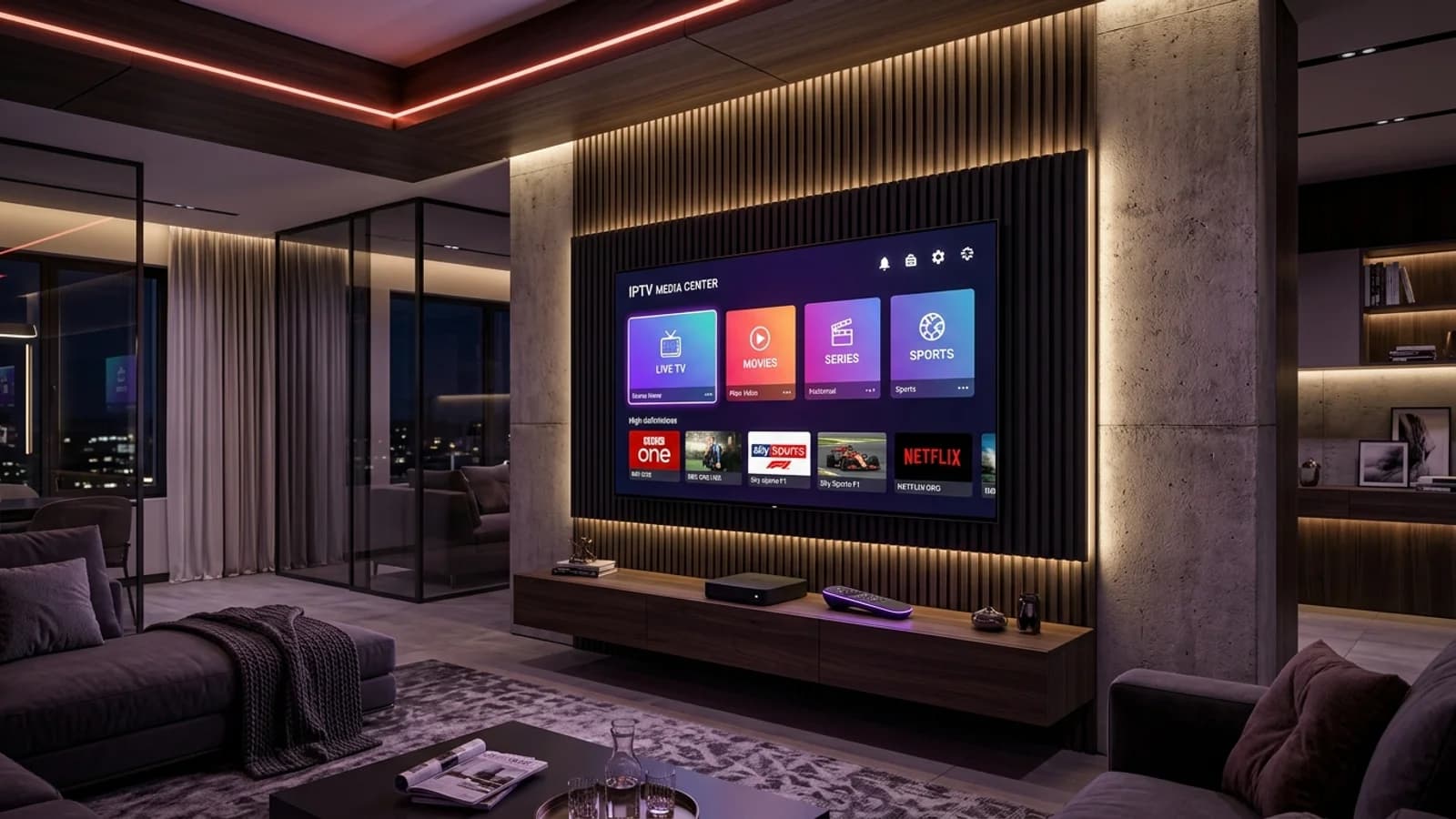
Streaming IPTV directly on your smart television eliminates the need for extra cables, power plugs, and secondary remote controls. However, unlike open operating systems like Android TV, smart televisions manufactured by Samsung and LG run proprietary closed-source platforms—Tizen OS and webOS, respectively.
Because of platform security restrictions and memory management rules, configuring your playlist on a smart TV requires specific native applications and occasionally an external web portal to upload your credentials. This guide walks you through the entire process step by step.
1. Understanding Smart TV Operating Systems
Samsung Tizen and LG webOS provide exceptional picture processing but operate under strict memory sandboxing.
Samsung Smart TVs built from 2018 onwards run Samsung Tizen OS, while LG OLED, QNED, and NanoCell televisions run LG webOS. Both platforms rely on their own curated app stores (Samsung Apps and LG Content Store) and do not support standard Android APK file sideloading.
Smart TVs generally dedicate the vast majority of their hardware resources to display picture processing engines (such as Samsung Neo Quantum AI or LG α9 Gen processor). As a result, third-party apps run in lightweight memory sandboxes with strict RAM allocations, typically around 512MB to 1GB.
Using an unoptimized player app on a smart TV with a massive playlist can cause the TV to freeze or crash back to the home screen. Choosing an app with efficient category caching is critical.
2. Top Rated Player Applications for Smart TVs
We have tested and verified the top IPTV applications currently available in the official Samsung and LG app stores.
Player Application
Samsung Tizen
LG webOS
Login Method
App Activation Fee
IPTV Smarters Pro
Yes (Search store)
Yes (Search store)
Direct Xtream Codes
Free basic / Paid Pro
IBO Player
Yes (Native)
Yes (Native)
Web MAC Portal
7-Day Trial, then ~€8 lifetime
Nanomid Player
Yes (Native)
Yes (Native)
Web Portal & QR
Free trial, then one-time fee
Smart IPTV (SIPTV)
Yes (Limited models)
Yes (Native)
Web MAC Portal
7-Day Trial, then €5.49 lifetime
3. Samsung Smart TV (Tizen) Installation Steps
Configure your Flexe IPTV playlist on any Samsung Smart TV in four straightforward steps.
1
Install the Application
Press the Home button on your Samsung remote, scroll to Apps, and search for 'IPTV Smarters Pro' or 'IBO Player'. Select Install.
2
Launch & Retrieve Device Credentials
Open the app. If using IBO Player, write down the 'Device MAC Address' and 'Device Key' shown on screen. If using Smarters Pro, click 'Login with Xtream Codes API'.
3
Upload Playlist via Web Portal
For IBO Player, open iboplayer.com/manage on your phone or PC, enter your MAC and Device Key, click 'Add Playlist', enter your Flexe IPTV M3U or Xtream credentials, and save.
4
Reload Channels on TV
Return to your Samsung TV, click 'Reload' or restart the app. Your live channel groups, movies, and EPG schedules will appear instantly.
4. LG Smart TV (webOS) Installation Steps
Set up and authenticate your streaming line on LG webOS televisions.
Press the Home button on your LG Magic Remote, launch the LG Content Store (or 'Apps' on webOS 23/24), and search for 'IPTV Smarters Pro' or 'IBO Player'. Install the application and grant the necessary local storage permissions.
If using IPTV Smarters Pro, choose 'Login with Xtream Codes API' and input your Server URL, Username, and Password exactly as provided in your Flexe IPTV subscription confirmation. Smarters will download category headers directly inside the TV app.
If using IBO Player or Nanomid, note your MAC address and Device Key, visit the respective upload portal on your laptop or smartphone, link your playlist credentials, and click Send. Relaunch the LG TV app to load your bouquets.
LG Magic Remote Optimization
In IBO Player and Smarters Pro on LG webOS, you can use the Magic Remote scroll wheel to quickly page through hundreds of channels in seconds without repeated button presses.
5. Troubleshooting Smart TV Video & Audio Issues
Resolve the most common playback quirks unique to smart television software.
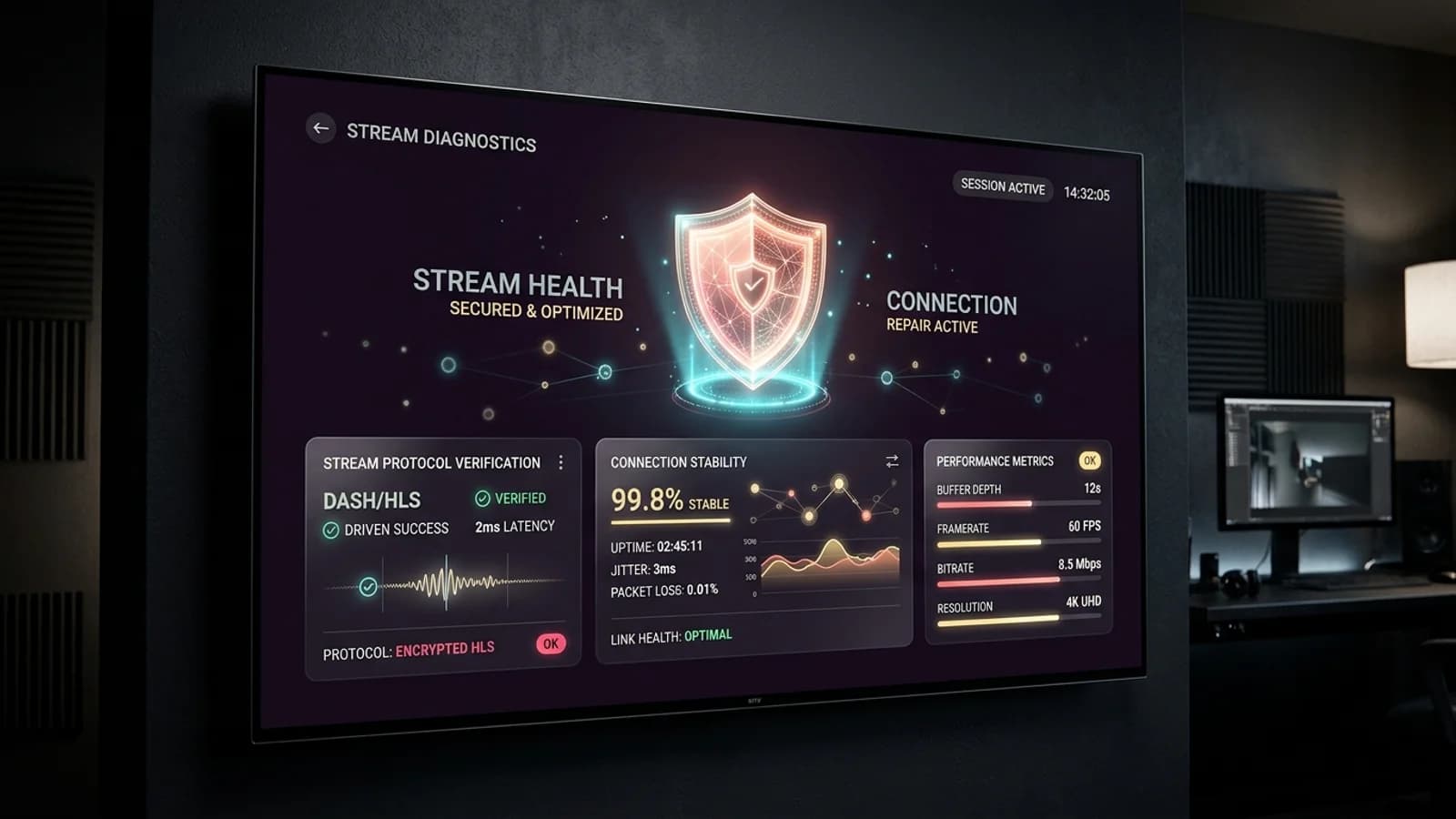
Sound Works but Black Screen: This indicates a hardware decoder mismatch. In your app settings, toggle the Video Decoder from 'Hardware' to 'Software' or change Stream Format from 'TS' to 'HLS'.
Audio Desync on Sports Feeds: Navigate to your Smart TV's sound settings (Settings > Sound > Advanced Settings > Digital Output Audio Format) and switch from 'Dolby Digital Plus' to 'PCM' or 'Pass-Through'.
App Freezes on Boot: Perform a cold reboot of your Samsung TV by holding down the Power button on your remote for 5 continuous seconds until the Samsung logo appears on screen. This flushes the TV's cached RAM.
Stretched Aspect Ratio: In the player's on-screen display menu during playback, change the Aspect Ratio setting from 'Fit to Screen' or 'Stretch' to '16:9 Original' to prevent distorted player visuals.
Next Steps & Resources
Ready to Experience High-Performance IPTV?
Put these tips into practice with Flexe IPTV's 4K streaming network. Test our 18,000+ channel catalog with a 24-hour test line or select a flexible multi-screen subscription plan.
A comprehensive walkthrough for configuring IPTV across Firestick, Android TV, Smart TVs, Apple TV, and PCs with recommended player apps, Xtream Codes connection, and optimal buffer settings.
A technical comparison of M3U playlist URLs and Xtream Codes API logins, detailing architecture differences, guide sync speeds, VOD indexing, and player performance.
A detailed diagnostic guide explaining how to fix HTTP status codes (401, 403, 404, 503), 'Playback Failed' decoder crashes, and audio-video desynchronization.